Pop App for Tyne and Wear Metro
Your go-to smartphone app, with everything you need to keep your Metro journey on track.
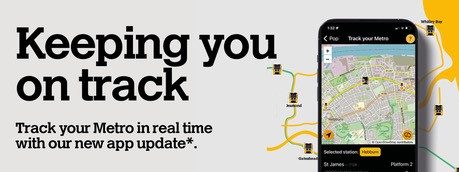
The Pop App makes travelling on Metro even easier, with great features to make your journey as smooth as possible:
- Track your Metro train in real time.
- Get updates for your Metro journey direct to your phone with personalised notifications.
- Buy a digital One Week Metro Season Ticket (Android only, not available on iOS)
- See the latest Metro service updates.
- Plan your Metro journey in advance.
- See park and ride facilities near Metro stations.
- Use Pop Pay As You Go (PAYG) on Android smartphones with Google Pay.
- Report anti-social behaviour directly to Metro Control Room.
Download the Pop App



Pop App features
Tailor the push notifications so you only see alerts that are relevant for you.
View handy video guides to see how to personalise your push notifications, with guides for Android and iOS below.
The Pop App allows you to track your Metro in real time, meaning you can plan your journey with live information.
App requirements
Your device will need to be connected to Wi-Fi or 4G/5G in order for the Pop App to provide real-time information.
Permissions
You will need to grant location permissions on your device, to allow the app to find your closest Metro station automatically and display real-time information on your phone without you needing to select a station manually.
You need to grant access to your precise location for the apps location feature to function correctly.
Getting started
If you have granted location permissions:
• Opening the Pop App home screen will find your closest station
• Selecting ‘Track your Metro’ will open the Track your Metro feature
If you have not granted location permissions:
• Opening the Pop App home screen will require you to choose a station
• Selecting ‘Track your Metro’ will open the Track your Metro feature to the station you have chosen.
| Using Track your Metro functions | ||
| Station selector | Pressing on the Selected station name (eg Hebburn), will open a selection menu, where you can choose a different station. The app will then provide real-time information for the chosen station. | 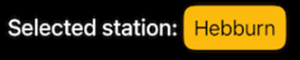 |
| Recentre button | This will reset the map back to your live location or your manually selected station location. |  |
| Feedback button | Pressing this button opens a feedback form in your device’s web browser |  |
| User guide button | This is the button you pressed to get here! |  |
| Real time information | The lower section of Track your Metro provides an auto-refreshing feed for all platforms at the selected station.
The feed updates frequently when a data connection is available. Here you’ll see: |
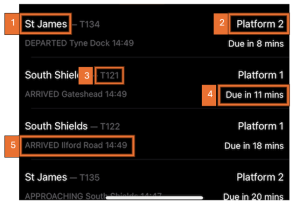 |
| Map | The map section of Track your Metro displays Metro trains, stations and alerts. Press them for more information. The map updates frequently when a data connection is available. You can pan and zoom around the Metro network. If location service permissions have been granted this map will update your location as you move around ensuring information is relevant |
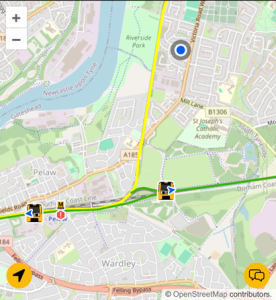 |
| Map key | ||
 |
Train | This indicates the location of a Metro train on the Metro system. |
 |
Direction | This is shown on a Metro train icon, indicating which direction it is travelling in. |
 |
Location | This indicates your live or manually selected location |
 |
Station | This is the location of a Metro station |
| Notifications | ||
 |
Red notification | Service disruption or suspension, or station closure |
 |
Amber notification | Facilities out of use |
 |
Information notification | Improvement works, for information only and other notifications |
You can buy a One Week Metro season ticket in the Pop App and use your smartphone to touch in and out on Metro.
Buying a Metro season ticket in the app
- To buy a ticket, select the + icon in the bottom right hand corner of the app and select Buy ticket.
- An adult One Week Metro Season Ticket is the only ticket currently available in the app.
- Select the Start date you want your ticket to start – this can be up to seven days in advance; the End date will be automatically set based on the Start date you select.
- Select the Zones you want your ticket to be valid for travel in. You can view the Metro zone map by selecting View zones.
- Select Pay with card or Buy with GPay. If you choose Pay with card, you’ll need to add your credit/debit card details and select Confirm. If you choose Buy with GPay you’ll be prompted to select the credit/debit card saved in your Google Pay account you wish to pay with.
- Once you’ve confirmed your payment method, the transaction will proceed.All payments are handled by Stripe, Nexus’ payment service provider. For further information, please read the Stripe Terms and Conditions.
- You will be advised that your purchase has been successful and you will be asked to click continue.
- If you receive a fault message you will be prompted to try again. If you receive a further fault message, please contact us.
- You will be prompted to complete an action and will be shown several choices including Google Pay, we recommend that you select Google Pay.If you complete the action Always, you will not be prompted in the future when purchasing a ticket.
- Click to activate the ticket. You will be asked to View the ticket in the app, click view in app.
- You will be taken to your Google Pay Wallet where the ticket you have purchased will be stored, ready for you to travel.
The Metro Season Ticket on your Pop App works differently on Metro, the Shields Ferry, Northern rail services and Quaylink buses.
Travelling on Metro
- You must validate your Mobile Ticket by using your phone to touch in at the start and touch out at the end of every journey you make using gates and validators.
- To validate your Mobile Ticket, unlock your phone and present the back of it (not the screen side) to the orange reader on the gate or the area under the screen on the validator.
- A successful touch will generate a tick on the screen of your phone and the gate or validator will display the message Welcome to Metro and gates will open. If you do not touch in, you will be travelling without a validated Mobile Ticket as required by the Metro Conditions of Carriage and will be liable for a Penalty Fare Notice and/or prosecution.
- If one or more of the gates or validators at a Metro station are out of service due to faults, you must use all reasonable endeavours to use other available gates or validators to validate your Mobile Ticket.
- If all gates or validators at a Metro station are out of service due to faults, speak to a member of staff or use a Help Point to contact staff in the Metro Control Room. Your details will be recorded, and you can then start your journey.
- You must be able to display your Mobile Ticket on your smartphone when requested by a member of staff, ticket inspector or other authorised officer when travelling. This includes your smartphone being in appropriate working order that all ticket details are legible when displayed on the screen. Only an original Mobile Ticket displayed in the Pop App will be accepted; screenshots and copies will not be accepted. If you are unable to display your Mobile Ticket, you will be liable for a Penalty Fare and/or prosecution.
Travelling on the Shields Ferry
- An all zones (A+B+C) Metro Season Ticket is valid on the Shields Ferry.
- Display your Mobile Ticket on your smartphone and present it to the crew when boarding. Only an original Mobile Ticket displayed in the Pop App will be accepted; screenshots and copies will not be accepted.
- If you are unable to display your Mobile Ticket for inspection by Ferry crew upon boarding, you will not be permitted to travel using it and will need to pay for your journey using alternative means.
Travelling on Northern rail services
- An all zones (A+B+C) Metro Season Ticket is valid on Northern rail services between Newcastle and Sunderland.
- Display your Mobile Ticket on your smartphone and present it to Northern staff on board trains and to station staff at Newcastle station ticket gates. Only an original Mobile Ticket displayed in the Pop App will be accepted; screenshots and copies will not be accepted. If you are unable to display your Mobile Ticket, you may be refused travel or liable for a Penalty Fare or prosecution by Northern under the National Rail Conditions of Carriage.
Travelling on Quaylink bus services
- A Metro Season Ticket that includes zone A is valid on Quaylink bus services in the Central Zone.
- Display your Mobile Ticket on your smartphone and present it to the driver when boarding. Only an original Mobile Ticket displayed in the Pop App will be accepted; screenshots and copies will not be accepted.
- If you are unable to display your Mobile Ticket for inspection by the driver upon boarding, you will not be permitted to travel using it and will need to pay for your journey using alternative means.
Frequently asked questions
The Pop App makes travelling on Metro even easier with lots of great features to make your journey as smooth as possible:
- Track your Metro train in real time
- Purchase a digital One Week Metro Season Ticket (Android only, not available on iOS)
- See the latest Metro service update from the Metro Control Room
- Plan your Metro journey in advance
- See park and ride facilities near Metro stations
- View available offers and much more.
We’re working on adding other Metro season tickets and Pop Pay As You Go to the app in the near future.
Technical limitations mean the app is only available on Android smartphones at the moment, but work is underway to develop a similar solution for other digital wallet providers.
The app can only be used on Near Field Communication (NFC) smartphones operating Android 5.0 (Lollipop) or higher.
Yes, you need mobile data or WiFi access to download the app and to buy a Mobile Ticket, but once your purchase is complete and the Mobile Ticket is stored on your phone you will not need mobile data or WiFi access to display the ticket and touch in and out at gates and validators. You will need mobile data or WiFi access to use the Real-time and Metro journey planner functions in the app.
A Metro season ticket purchased as a Mobile Ticket in the app works in the same way as a ticket loaded onto a Pop card, except you use your smartphone to touch in and out at Metro station gates and validators rather than a physical smartcard. This is more convenient for many customers, although Pop cards will continue to be available as normal for those who prefer travelling with a smartcard.
You need to ensure that your smartphone can display your Mobile Ticket at all times when travelling. If you are unable to display your Mobile Ticket, you will need to buy an alternative ticket for your journey or you will be liable for a Penalty Fare and/or prosecution.
No, you don’t need a Nexus account to use the app – the app works separately to Pop cards managed through a Nexus account. All you need to buy a Metro season ticket as a Mobile Ticket in the app is a Google Pay account, which is where your Mobile Ticket is stored.
You can apply for a refund for service delays or cancellations in the same way that you would do for a Metro season ticket loaded on a Pop card. Read more about Metro ticket refunds.
The current Metro gates and validators cannot read credit/debit cards, so we can’t offer this functionality.


